

Patch WordPress core, plugins, and themes today, enforce HTTPS, turn on multi-factor authentication, start automated offsite backups, and put a web application firewall in front of the site. CISA recommends quick patching and MFA, and Verizon’s DBIR points to credential abuse and ransomware as real threats to small businesses. The checklist and how-to steps follow below.
TL;DR:
- Apply core security releases immediately, using automatic background updates when testing permits; reserve staging for major plugin and theme changes, then verify critical pages.
- Keep three data copies across two media, store one encrypted copy offsite beyond WordPress admin access, and test a restore monthly on staging.
- Ask your host to confirm supported PHP, SFTP, account isolation, and a managed WAF; apply rate limits to login endpoints instead of broad country blocks.
- Give each person a separate account, limit most staff to Editor or Author access, and favor passkeys or other MFA methods resistant to phishing.
- Delete unused plugins and themes instead of leaving them deactivated, and audit the inventory quarterly for abandoned code and unnecessary third party scripts.
Table of Contents
- What should you do first to protect your WordPress site?
- What should you require from your host and server?
- How do you keep WordPress updated without breaking your site?
- How do you lock down logins and user access?
- How do you back up WordPress so you can actually recover?
- How do edge protections stop attacks early?
- How do you vet and clean up plugins and themes?
- How do you spot a breach and respond?
- What does a daily-to-annual security routine look like?
- Security and design: where we see them collide
- Secure WordPress maintenance, handled by our team
- FAQ
- Sources
What should you do first to protect your WordPress site?
Work top to bottom. Each item is tagged as something you can do now or something to schedule with your host or agency.
- Update core, plugins, and themes (do this now, then schedule a repeatable routine): the time needed depends on your setup and whether you add staging and testing.
- Enforce HTTPS (do this now): the setup time depends on your host and certificate options.
- Turn on MFA for every admin and editor (do this now): allow time to roll it out across your team.
- Set up automated, offsite, versioned backups (schedule with host or agency): configuration time depends on your setup, and includes a first restore test.
- Add a WAF and login rate limiting (schedule with host or agency): the setup time depends on your host and whether you configure a CDN yourself.
- Remove unused plugins and extra admin accounts (do this now): the time needed depends on how many you have.
Order matters because stolen passwords are how many attackers get in.
Credential abuse is a leading way attackers gain initial access, and ransomware hits small businesses disproportionately, according to Verizon’s 2025 DBIR research. That is why MFA and patching sit at the top of your list, ahead of anything cosmetic.
What should you require from your host and server?
Your hosting setup decides how much of the work you carry yourself. Ask your host, or your agency, to confirm each of these in writing.
Secure file access. Require SFTP instead of plain FTP, so credentials and files are encrypted in transit. WordPress hardening documentation also calls for secure servers and correct file permissions, and warns against leaving writable files lying around. Ask who owns permission settings and when they were last reviewed.
Current software. Your host should run a supported PHP version and handle operating system and security updates on the server. If your site sits on an old PHP release, plugin updates alone will not make it safe.
Isolation between accounts. On shared hosting, one compromised neighbor should not be able to reach your files. Ask whether accounts are isolated from each other and what happens if another customer’s site is infected.
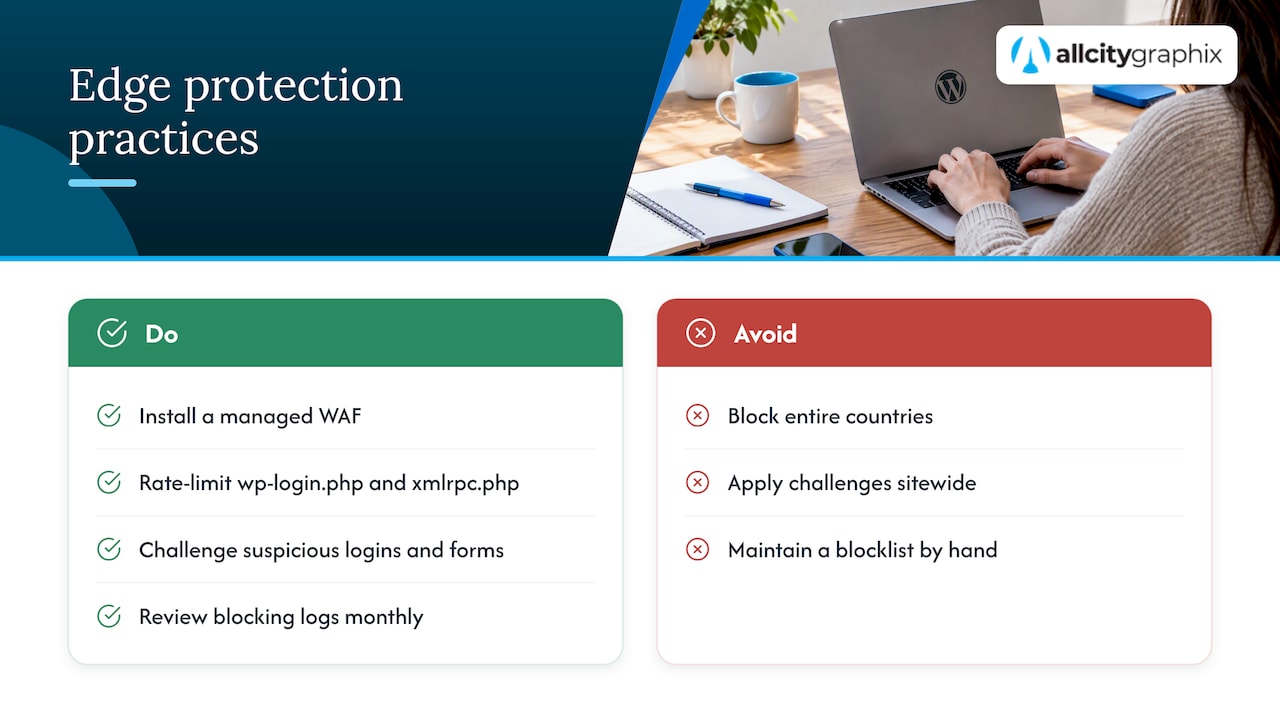
Edge protection from the host. A managed WAF and CDN offered by your host is usually easier to maintain than anything you build yourself. Practitioners such as InMotion Hosting’s support team advise against broad country blocks and heavy .htaccess rules, which tend to break legitimate traffic and need constant upkeep. Keep any server rules narrow and targeted, and let edge defenses do the heavy lifting.
Housekeeping. Disable services you do not use, such as unused FTP or admin panels, and ask how the host notifies you about incidents. For a deeper look at hosting choices, this partner guide to securing WordPress for small businesses covers supplementary steps worth comparing against your current setup.
How do you keep WordPress updated without breaking your site?
Patching is the control most business owners postpone, and it is the one that closes known holes. When a security release ships, the guidance is plain: update right away. The WordPress 7.1.3 security release notes say so directly and list the vulnerabilities fixed, which means anyone reading them also knows what to attack on a site that has not updated. Earlier releases carry the same message: the WordPress 7.0.3 notes recommend immediate updates and automatic background updates where available.
Only the most recent major WordPress versions are actively supported, and backports to older ones are a courtesy, as the WordPress 7.1.1 announcement explains. Running an old major version is therefore a risk in itself. The WordPress security release archive shows how often these releases arrive during 2026, so a routine beats an occasional scramble.
A workflow that fits a small team
- Back up first. Take a versioned backup before any update so you can roll back.
- Update on staging. Apply updates to a staging copy and click through your key pages: forms, checkout, login. If you are weighing a bigger move, our guide to migrating to WordPress with staging first shows how staging fits into a larger project.
- Schedule the live update. Pick a low-traffic window and push the same updates to production.
- Verify. Recheck forms, payments, and speed afterward.
- Set a remediation target. Decide in advance how fast critical fixes must go live, and who is accountable when they do not.
When to skip staging
A security release for core is the exception. Minor and security releases are good candidates for automatic background updates when your testing constraints allow, because waiting days to test can cost more than the small risk of an update breaking a page. CISA’s guidance for small businesses also stresses patching critical vulnerabilities quickly. Small teams often lack time, so we recommend letting automatic updates handle security releases and reserving staging for major plugin and theme changes.
How do you lock down logins and user access?
Most attacks on business sites are not clever. Bots repeatedly try stolen passwords against wp-login.php. Your defense is to make a stolen password useless and to give every account only the power it needs.
- Unique passwords everywhere. Use a password manager so nobody reuses a password from another service.
- No shared logins. One account per person means you can see who did what and remove access in one step when someone leaves.
- MFA for every privileged user. CISA recommends enforcing MFA on internet-accessible accounts and preferring phishing-resistant methods such as FIDO. The WordPress developer guidance on brute-force attacks likewise points to two-factor authentication or passkeys.
- Least privilege. Most staff need Editor or Author roles, not Administrator. Review the admin list and demote anyone who does not manage the site.
- Rate limits on login and XML-RPC. Limit login attempts at the edge or WAF where possible, and disable or protect xmlrpc.php if nothing on your site uses it.
Pro Tip: Do the admin list review before you roll out MFA. Removing dormant admin accounts first means fewer people to enroll and fewer forgotten doors left open.
Roll MFA out to administrators first, then editors, then anyone with publishing rights. The work involved depends on the size of your team and its setup.
How do you back up WordPress so you can actually recover?
A backup that lives only on your server can be encrypted or corrupted in the same attack that takes down your site. The 3-2-1 approach avoids that single point of failure. Vultr’s backup documentation describes it as three copies of your data, on two different media, with one copy stored offsite, and recommends regular restore testing.
Build the strategy in this order:
- Keep three copies: the live site plus two backups.
- Use two different media or locations, for example your host’s snapshots and a separate storage service.
- Store at least one copy offsite, encrypted, in an account that your WordPress admin credentials cannot reach.
- Automate on a schedule that matches how often your content changes. A site that takes orders daily needs more frequent backups than a brochure site.
- Keep versioned snapshots so you can roll back to a point before an infection, not only to last night’s copy.
- Test a restore regularly on a staging site and write down what you did.
Write a one-page recovery playbook
A tested backup is only useful if someone knows how to use it at 2 a.m. Record where backups live, who can access them, the steps to restore files and the database, and who to call at your host. CISA’s website security guidance also lists tested backups among its core recommendations. Keep the playbook somewhere outside the website itself, since you may not be able to reach the site when you need it.
How do edge protections stop attacks early?
A web application firewall and CDN sit in front of your site and filter traffic before it reaches WordPress. That matters because credential-stuffing and bot floods consume server resources even when they fail, slowing the site for real customers.
A managed WAF and CDN can block known attack patterns, serve cached content without hitting your server, and provide a place to apply rate limits. Edge rate limiting is where the biggest gain for WordPress sits. Target wp-login.php and xmlrpc.php specifically, since these are the endpoints automated attacks hammer. The WordPress brute-force guidance prefers edge or WAF rate limiting over relying on the site alone, and mentions server-level tools such as ModSecurity where appropriate.
For traffic that looks suspicious but not clearly malicious, a challenge such as CAPTCHA or Cloudflare Turnstile lets real visitors through while stopping simple bots. Apply it to login pages and forms rather than the whole site.
Avoid the blunt tools. Blocking entire countries can lock out real customers, travelers, and partners, and, as noted by practitioners at InMotion Hosting, heavy server-side blocking often breaks functionality. Managed bot management adjusts as attackers change tactics, so you are not maintaining a blocklist by hand. If you only change one thing here, put a managed WAF in place and set login rate limits, then review the logs monthly to see what it blocks.
How do you vet and clean up plugins and themes?
Every plugin is code written by someone else that runs with the full privileges of your site. A single abandoned plugin can undo the rest of your security work.
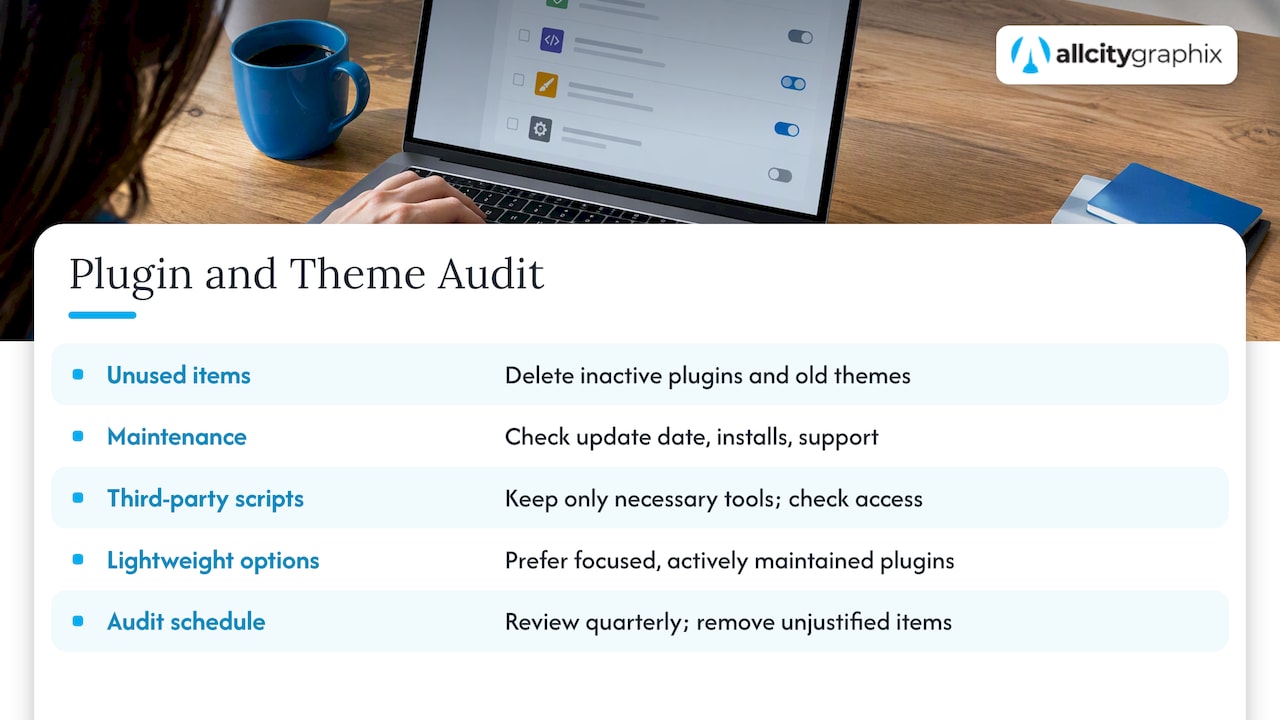
Remove what you do not use. Deactivated plugins and old themes still sit on the server, and flaws in them can sometimes be reached. Delete them rather than leaving them parked.
Check before you install. Look at the last updated date, the number of active installs, and how quickly the developer answers support questions. A plugin untouched for a long stretch, or with unanswered security reports, is a warning sign.
Cut third-party scripts. Chat widgets, trackers, and embedded tools load code from other companies onto your pages. Keep only those that earn their place, and audit what each one can access.
Prefer lightweight, maintained options. A focused plugin from an active developer beats a bloated all-in-one tool whose features you mostly ignore. Fewer features means a smaller attack surface and faster pages.
Run an audit on a schedule. Quarterly works for most business sites: list every plugin and theme, note its purpose and owner, and remove anything nobody can justify.
If you are balancing security cleanup with visibility goals, our small business SEO guide explains how to avoid disrupting rankings while you tidy up. This partner article on tracking SEO metrics is also useful for confirming that cleanup work did not hurt traffic.
How do you spot a breach and respond?
You cannot respond to what you cannot see, so set up detection before anything goes wrong.
- Turn on audit logs for logins, role changes, plugin installs, and file edits, and send them somewhere an attacker on the site cannot erase.
- Run regular malware scans and enable file-integrity monitoring so unexpected changes to core files raise an alert.
- Review scan and log summaries weekly, or assign someone to do it.
- Watch uptime and unexpected redirects, which are often the first sign customers notice.
- Keep an incident contact list with your host, your agency, and whoever handles legal and customer notifications.
If you suspect a compromise, move in this order: isolate the site by putting it into maintenance mode or asking your host to suspend it, restore from a tested backup taken before the infection, rotate every credential including hosting, database, and admin passwords, and bring in specialists to find how the attacker got in.
Hosted cleaning services handle straightforward malware. Escalate to managed incident response when customer data may have been exposed, when the infection keeps returning after cleanup, or when you handle payments. CISA’s website security guidance also recommends enabling logging and scanning for vulnerabilities as part of normal operations.
What does a daily-to-annual security routine look like?
Security sticks when every task has an owner and a rhythm. Hand this list to a manager or agency.
- Daily (host or agency): check uptime, review alerts, and confirm the last backup completed.
- Weekly (developer or agency): apply plugin and theme updates on staging, then push to production.
- Monthly (site owner and developer): run a restore test, audit user accounts, and review firewall and login logs.
- Quarterly (developer): audit plugins and themes and remove anything unneeded.
- Annually (site owner and host): hold a security review, check your PHP version, and review your hosting contract and backup terms.
Outsource anything your team lacks time for, especially weekly updates and monitoring. For a ready-made template, use our website maintenance checklist, which breaks the same cadence down from daily to annual tasks.
Security and design: where we see them collide
Security advice often ignores that a site also has to sell. Our view: the best controls are the ones your team actually keeps turned on, so pick friction carefully. MFA adds a few seconds at login for staff, which is a fair trade. Aggressive blocking, endless CAPTCHAs on checkout, and plugin bans that kill a feature the sales team relies on are different, because people route around them.
We design with that tension in mind. Fewer plugins, lighter scripts, and clean templates are better for speed and for security at once. A maintenance plan then bundles the unglamorous work: updates, backups, monitoring, and coordination with your host, so one team owns the whole picture instead of three vendors pointing at each other. Use the checklist above on your own, or reach out if you would rather hand it off.
— Alex
Secure WordPress maintenance, handled by our team
If you would rather not run this checklist yourself, our team handles web design, web development, and website maintenance for business sites. We start with a discovery conversation about how your site makes money, prioritize the security fixes that matter most, then take on ongoing updates and monitoring so the work does not slip. Tell us what you are running and we will tell you where to begin on our services page.

FAQ
How do you keep WordPress secure?
Keep core, plugins, and themes updated, require MFA, use unique passwords, run automated offsite backups, and put a firewall in front of the site. CISA’s small business guidance backs patching quickly and enforcing multi-factor authentication. Remove unused plugins and review admin accounts regularly.
How secure is a WordPress website?
WordPress core is maintained with regular security releases, but your site is only as safe as its plugins, passwords, and hosting. Outdated software and stolen credentials are risks to consider alongside flaws in WordPress core. Verizon’s DBIR research highlights credential abuse as a leading way in.
What is the best website security plugin for WordPress?
There is no single best choice, because it depends on your host and how much a managed firewall already covers. Look for a maintained plugin with login protection, malware scanning, and clear logs, and avoid stacking several overlapping security plugins. A host-managed WAF often does more than any plugin alone.
How often should you test your WordPress backups?
Test a restore at least monthly on a staging site, and after any major change to your hosting or backup setup. The 3-2-1 backup guidance from Vultr recommends regular restore testing, because a backup you have never restored may not work when you need it.
Sources
- 2025 DBIR: Credential Stuffing Attack Research & Statistics | Verizon
- Cyber Guidance for Small Businesses | CISA
- WordPress 7.1.3 Maintenance and Security Release