

Every website needs automated backups stored off-site, uptime monitoring running around the clock, weekly security scans, staged software updates, and monthly performance and broken-link checks. Those are the floor, not the ceiling. Ecommerce stores and high-traffic sites need tighter cadences and more frequent restore tests. The sections below break down exactly what “done” looks like for each task, plus the proof you should keep to verify it actually happened.
TL;DR:
- Daily off-site backups and uptime checks are crucial, especially for ecommerce sites with high transaction volume, to prevent data loss and service outages.
- Weekly security scans, plugin updates, and performance audits should produce a verifyable report to confirm completion and identify potential vulnerabilities.
- Monthly monitoring of Core Web Vitals, image optimization, and load times from mobile devices are necessary to maintain fast site performance and search rankings.
- Regular review of legal pages, broken links, metadata, and analytics ensures content remains current and tracking data stays accurate, supporting legal compliance and decision-making.
- Automated monitoring, documented proof of maintenance, and quarterly restore tests are essential for effective site management, especially for revenue-critical or legally sensitive websites.
Table of Contents
- What Should Be on a Website Maintenance Checklist?
- How Do You Keep Backups and Security Airtight?
- What Speed Metrics Should You Track Every Month?
- How Often Should You Check Content and SEO?
- Which User Flows Need Regular Testing?
- How Do You Set Up Uptime and Error Monitoring?
- What Proof Should You Keep for Every Maintenance Task?
- Should You DIY, Automate, or Hire a Maintenance Retainer?
- How Do You Keep the Database Clean and Fast?
- When Should You Renew Your SSL Certificate?
- How Do You Track Storage and Bandwidth Usage?
- Are Your Privacy Policy and Compliance Pages Current?
- The Part of Maintenance Everyone Underrates
- Maintenance Without the Guesswork
- Sources
- FAQ
What Should Be on a Website Maintenance Checklist?
A working schedule breaks tasks into four buckets: daily, weekly, monthly, quarterly, with an annual strategic review layered on top. This cadence structure is consistent across industry maintenance guides, and it works because it matches risk to frequency. Backups and uptime checks run daily because losing either for even a few hours can cost you sales or data. Deeper audits happen quarterly because they take longer and don’t change much week to week.
Here’s the schedule in a format you can copy into a spreadsheet or hand to whoever manages your site:
| Frequency | Critical action | What “done” looks like |
|---|---|---|
| Daily | Automated backup + uptime check | Backup file timestamped recently; uptime log shows no unresolved downtime alerts |
| Weekly | Security scan + software updates | Scan report with zero unresolved critical flags; changelog showing plugin/theme/core versions updated |
| Monthly | Performance audit + broken-link sweep | Core Web Vitals report saved; 404 list generated and fixed or redirected |
| Quarterly | Restore test + content/legal review | Restore log with recovery time recorded; policy pages show a reviewed date |
| Annual | Full strategic review | Written summary covering traffic trends, redesign needs, and hosting fit |
A few things stand out once you lay it out this way. First, nothing on the daily and weekly rows should require a person to remember to do it. Second, every row has a paper trail attached. That’s deliberate.
Smaller brochure sites can often stretch some of this. A five-page site for a local service business can reasonably shift from daily to weekly on some checks. But ecommerce sites and anything processing payments should tighten toward daily or real-time monitoring rather than loosen it, because the cost of an outage or a security breach scales with transaction volume.
Print this table or drop it into a shared doc. It’s the backbone the rest of this article builds on.
How Do You Keep Backups and Security Airtight?
Backups fail silently more often than people realize. The backup runs, the file gets created, and nobody notices it’s been saving to the same server as the site itself until a hosting failure wipes out both the site and the backup in one event. That’s why off-site storage is a non-negotiable part of any real backup strategy, separate from wherever your site actually lives.
Here’s what a solid backup and security routine actually includes:
- Automated full-site backups running daily, stored on a separate service or cloud storage, not the hosting server.
- Database backups running alongside file backups, since a site restore without matching data is useless.
- A staging environment where you restore a backup quarterly to confirm the files actually work, not just that they exist.
- Weekly automated security scans covering malware, known vulnerability signatures, and file integrity changes.
- A patch policy that treats critical security updates as same-day and batches non-critical updates for testing on staging first.
The restore test is the step almost everyone skips, and it’s the one that matters most. A backup you’ve never restored is a theory, not a safety net. The recommended approach is to run the restore on staging, verify database integrity, run smoke tests on your key pages, and log the total time it took. That recovery time number matters. If restoring takes six hours and your site generates meaningful revenue per hour, you now know exactly what an outage costs you and can plan accordingly.
Automating backups, scans, and update checks removes the single biggest failure point in this whole process: a human forgetting to do something. Scheduled tasks don’t skip a week because someone’s on vacation.
Pro Tip: Set a calendar reminder to actually open your last backup file once a month, not just check that a backup ran. A corrupted or empty backup file that “completed successfully” in a log is worse than no backup at all, because it gives you false confidence.
Removing unused plugins and themes deserves its own line item here, not because it’s flashy, but because inactive plugins still present an attack surface even when they’re deactivated. If you installed a plugin two years ago to test something and forgot about it, it’s still sitting there as a potential entry point. Delete it, don’t just deactivate it.
What Speed Metrics Should You Track Every Month?
Google’s Core Web Vitals, Largest Contentful Paint, Cumulative Layout Shift, and interaction responsiveness, are the standard benchmarks for measuring real user experience, and they directly affect both bounce rate and search rankings. Check them monthly at minimum, and immediately after any major content or design change.
A quick monthly speed checklist looks like this:
- Run a Core Web Vitals check through Google’s PageSpeed Insights or Search Console and record the scores.
- Compress and resize images before upload; oversized images are still the most common cause of slow load times on small business sites.
- Confirm browser caching and a content delivery network are active and serving cached assets correctly.
- Check that CSS and JavaScript files are minified and not loading render-blocking scripts unnecessarily.
- Test load time on mobile specifically, since mobile connections and processors lag behind desktop.
Quick fixes handle most of this. A bloated homepage carousel, an unoptimized hero image, or a font loading from three different sources are the usual culprits, and they’re often a same-day fix once you know where to look. If you’re seeing a slow, steady decline in scores month over month with no single obvious cause, that’s the signal to run a deeper audit rather than another round of quick patches. A technical SEO audit can catch structural issues that quick fixes won’t touch, like render-blocking third-party scripts or a theme that’s simply too heavy for its own good.
Whatever you do, take a before snapshot before making changes and an after snapshot once they’re live. Screenshot the actual scores, not just your memory of “it feels faster.” Without that record, you can’t prove the fix worked, and you definitely can’t diagnose a regression six months from now if something breaks again.
Pro Tip: Keep a simple log with the date, the page tested, and the three Core Web Vitals scores. Three months of that log tells you more about your site’s trajectory than any single audit ever will.
For sites that have never had a dedicated pass at load time, a website speed optimization review usually surfaces the two or three fixes that account for most of the improvement, rather than a dozen minor tweaks with diminishing returns.
How Often Should You Check Content and SEO?
- Quarterly: review time-sensitive and legal pages. Pricing pages, event dates, seasonal promotions, and anything referencing a specific year need a quarterly pass to catch anything stale. Privacy policies, terms of service, and shipping/return policies belong on this same quarterly cycle since outdated legal language creates real liability.
- Monthly: sweep for broken links and 404s. Use a crawler tool to find dead internal and external links, then fix or redirect each one. A site with a growing pile of 404s signals neglect to both visitors and search engines.
- Monthly: audit metadata. Check that title tags and meta descriptions still match current page content, especially on pages that have been edited since the metadata was written.
- Monthly: confirm analytics are firing correctly. Open your analytics dashboard and verify that pageview data, goal tracking, and conversion events are still recording. A tracking code broken by a theme update can go unnoticed for months, and every week it’s broken is a week of decisions made on incomplete data.
- Ongoing: keep core content aligned with your actual offering. If services, pricing, or team members change, the site should reflect that within days, not whenever someone remembers.
A content strategy built around a regular review cycle makes steps one and five far less painful, because you’re not starting from scratch every quarter. You’re just checking against a plan you already have.
Which User Flows Need Regular Testing?
Every site has a handful of paths that matter most to the business, and those should be tested regularly or immediately after any update.
- The contact form, tested end to end including the confirmation email or notification you receive.
- The checkout or payment flow, if you sell anything, tested with a real (small) transaction, not just a form submission.
- Any account creation, login, or password reset flow.
- Newsletter or lead capture signups, confirming the subscriber actually lands in your email platform.
- Third-party integrations like booking widgets, chat tools, or payment processors, confirmed to still be talking to each other correctly.
Simulating a real transaction matters more than most people assume. A checkout can look perfectly functional in the browser while a webhook silently fails to notify your fulfillment system or CRM. Run a small test purchase periodically and confirm every downstream system that’s supposed to fire actually does.
Mobile and cross-browser checks round this out. Load your key pages, especially forms and checkout, on an actual phone, not just a resized browser window, since touch targets and mobile keyboards behave differently than a desktop simulation suggests. A quick accessibility spot-check, tabbing through a form with a keyboard alone, catches issues that a purely visual review will miss entirely.
Pro Tip: Ask a friend or employee outside your team to complete your checkout or contact form once a month, with zero guidance from you. Watching where someone genuinely new gets stuck reveals friction points you’ve stopped noticing.
How Do You Set Up Uptime and Error Monitoring?
Uptime monitoring should check your site at short intervals around the clock, not once a day. Most monitoring tools check every one to five minutes and alert you the moment a request fails, which is the difference between catching an outage in minutes versus discovering it hours later from a customer complaint.
A workable monitoring setup includes:
- Uptime checks running continuously, with alerts sent to a channel someone actually watches, like a phone notification or Slack, not just an email that sits unread.
- Server and application error logs retained for at least 30 days, so you can trace back what happened before an incident.
- A baseline sense of normal traffic and error rates, so a sudden spike in 500 errors or failed logins stands out instead of blending into the noise.
- A tiered alert system where critical failures (site down, payment errors) page someone immediately, while minor issues batch into a daily digest.
That last point matters more than it sounds. Alert fatigue is a real problem: teams that get paged for every minor warning start ignoring notifications altogether, which means the one alert that actually matters gets missed too. Keeping documented proof of monitoring results, rather than relying on memory of “it seemed fine,” gives you the log trail needed if you ever need to reconstruct what happened during an outage.
What Proof Should You Keep for Every Maintenance Task?
Maintenance that isn’t documented is maintenance nobody can verify happened, including you six months from now when you’re trying to remember what you did. A one-page maintenance report solves this, and it doesn’t need to be complicated.
- Backup log: file name, timestamp, storage location, and size for each backup cycle.
- Security scan report: date, scan results, and how any flagged issues were resolved.
- Update changelog: what was updated, version numbers, and the date each change went live.
- Restore test results: date of the last test, recovery time, and confirmation the site functioned correctly afterward.
- Performance snapshot: Core Web Vitals scores with the date they were captured.
Retain these records for at least a year, longer if you’re in a regulated industry or handling sensitive customer data. Off-site storage applies to this documentation too. If your only record of a security scan lives in an email that gets auto-deleted after 90 days, you don’t really have a record.
Pro Tip: Build this report as a running document, not something you assemble from scratch each time. Five minutes after each task beats an hour of reconstruction later.
Should You DIY, Automate, or Hire a Maintenance Retainer?
The right setup depends on three things: how critical the site is to revenue, how much traffic it handles, and how much time you actually have. A local service business site with light traffic can often run on a DIY plus automation combination. A store processing daily orders usually can’t afford the risk of a missed patch or a failed backup nobody caught.
- If your site generates most of your revenue, a paid retainer with guaranteed response times is worth the cost.
- If you’re comfortable with basic tools, a stack of automated backup software, an uptime monitor, and a scheduled security scanner covers most of the daily and weekly load.
- If you outsource, require a written agreement specifying cadence, exact deliverables per period, and incident response time.
A small business marketing plan that includes a maintenance calendar keeps upkeep tied to your actual publishing and campaign schedule, instead of floating disconnected from the rest of your operation.
How Do You Keep the Database Clean and Fast?
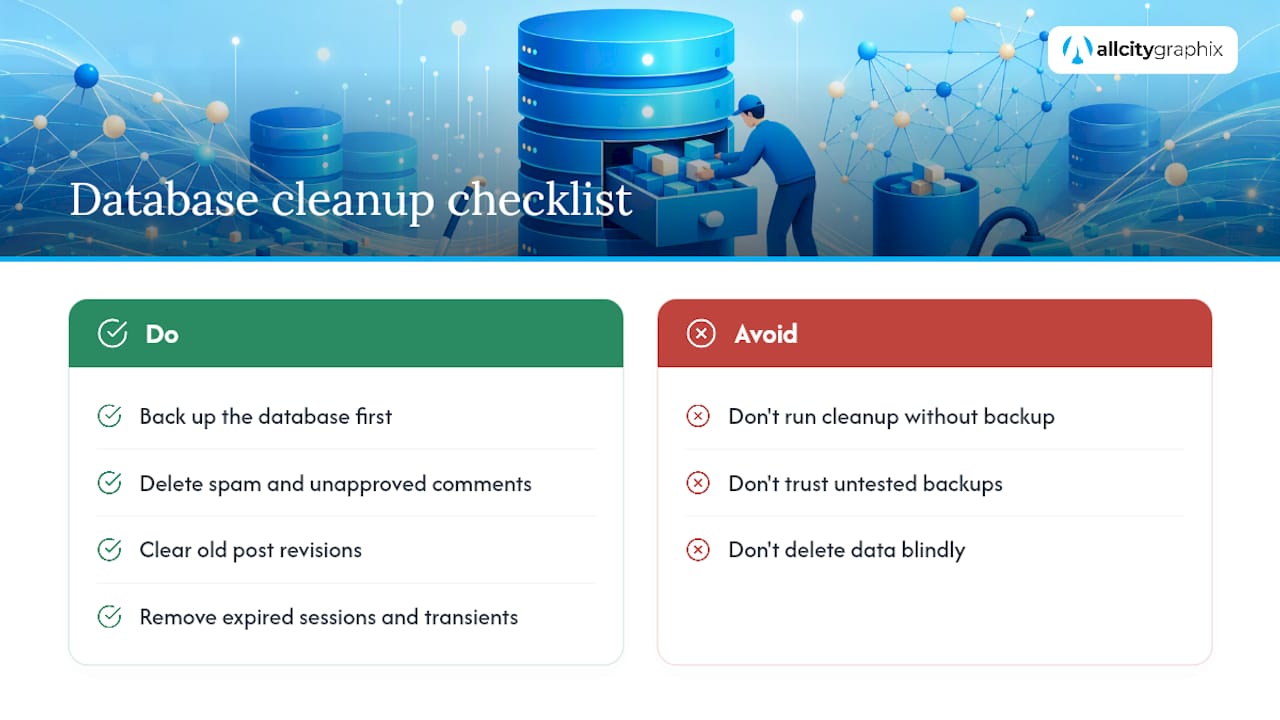
Databases accumulate junk the way garages accumulate boxes: spam comments, expired transients, orphaned post revisions, and abandoned draft entries all pile up quietly. A bloated database slows down every query your site runs, which means slower page loads even if everything else is optimized.
A monthly database cleanup pass should cover a few specific things. Delete spam and unapproved comments rather than letting them accumulate indefinitely. Clear out post revisions beyond the last few versions of each page, since most platforms save a new revision every time you hit save. Remove expired session data and transient options that were only ever meant to be temporary. Check for orphaned metadata left behind by plugins you’ve since removed.
WordPress sites in particular benefit from a dedicated cleanup plugin like WP-Optimize, which handles table optimization and revision cleanup without requiring direct database access. Run this monthly for active sites, or before any major update for sites with lower traffic.
One caution worth repeating here: back up the database before running any cleanup operation, no exceptions. A cleanup tool that misidentifies “unused” data as safe to delete can cause real damage, and the backup is your only real safety net if that happens. Restore testing applies here too. If you’ve never confirmed you can recover from a database backup specifically, you’re trusting an untested assumption.
When Should You Renew Your SSL Certificate?
Most SSL certificates run on a cycle from a few months to a year depending on the certificate authority, and letting one lapse can quickly erode visitor trust. A site with an expired certificate throws a full-page browser warning that tells every visitor the connection isn’t secure, and most people click away rather than proceeding.
The fix here is almost entirely about automation. Certificates issued through Let’s Encrypt and similar services typically auto-renew every 90 days without manual action, provided the renewal process is configured correctly on your server. The failure mode isn’t usually the certificate authority forgetting to renew. It’s a server migration, a DNS change, or a hosting switch that breaks the auto-renewal script without anyone noticing until the certificate actually expires.
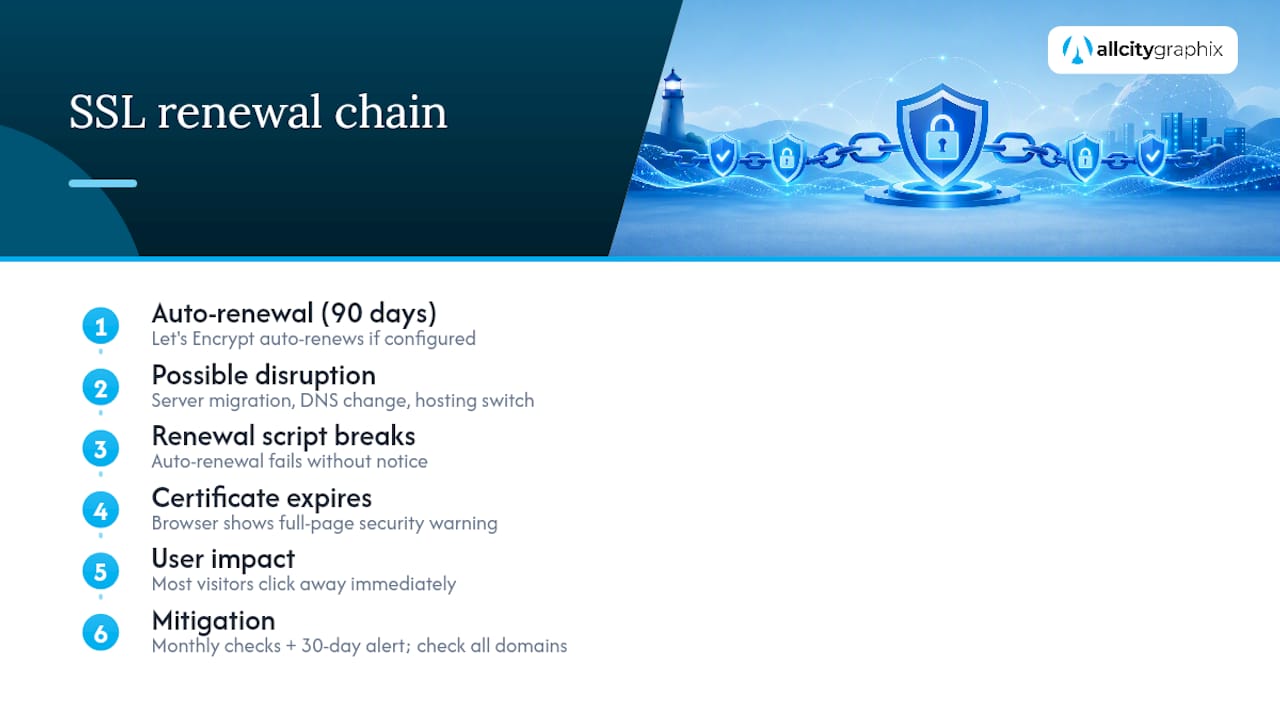
Check your SSL status monthly as part of your regular review, not just when a browser warning shows up. Most uptime monitoring tools can be configured to alert you 30 days before expiration, which gives you a real buffer to fix a broken renewal process before it becomes a visitor-facing problem. If you manage multiple domains or subdomains, confirm each one has its own valid certificate. It’s common for a main domain to be covered while a secondary subdomain quietly runs on an expired one for months.
How Do You Track Storage and Bandwidth Usage?
Storage and bandwidth limits are the kind of thing nobody thinks about until a site goes down because it hit a hosting cap during a traffic spike. Most hosting plans, whether shared, VPS, or managed, come with defined storage and bandwidth allowances, and exceeding them can mean throttled performance or an unexpected overage charge.
Check your hosting dashboard monthly for current usage against your plan’s limits. Media libraries are usually the biggest offender. Every uploaded image, video, and backup file adds up, and sites that have been running for years often carry a substantial amount of unused media nobody’s cleaned out. Old backup files stored locally on the server rather than off-site compound this problem twice over: they eat storage and they violate the off-site backup principle at the same time.
Bandwidth spikes are worth watching for patterns. A sudden jump usually traces back to one of a few causes: a viral piece of content, a bot or scraper hammering your server, or a misconfigured redirect loop generating repeated requests. Set up an alert for unusual bandwidth activity so you catch a scraping bot early rather than discovering it after your monthly allowance is gone. If you’re consistently running close to your plan’s ceiling, that’s a signal to either upgrade hosting or offload heavy media to a content delivery network before it becomes an outage.
Are Your Privacy Policy and Compliance Pages Current?
Privacy policies and compliance pages are the part of a website maintenance checklist that gets skipped most often, mostly because nothing visibly breaks when they go stale. That doesn’t make it optional. If you collect email addresses, run analytics, or serve visitors in the European Union, your privacy policy needs to accurately reflect what data you actually collect and how it’s used under frameworks like the GDPR.
Review these pages quarterly alongside your other legal and time-sensitive content. Specifically check that your cookie consent banner still functions correctly, that any third-party tools you’ve added since the last review (a new chat widget, a new analytics tool, a new ad pixel) are disclosed in the policy, and that your data retention and deletion practices match what’s written. A policy that describes tools you removed two years ago, or omits ones you added last month, doesn’t hold up if a visitor or regulator ever asks questions.
This isn’t a task to guess at. Compliance requirements vary by where your visitors are located and what data you collect, and getting the specifics wrong carries real legal exposure. When in doubt on the legal language itself, that’s a conversation for a qualified attorney rather than a generic template, but the maintenance side, catching when the policy has drifted from reality, absolutely belongs in your recurring review cycle.
The Part of Maintenance Everyone Underrates
Most people think of website maintenance as a technical problem. It’s really a documentation problem wearing a technical costume. All City Graphix has spent over 15 years watching small businesses get burned not because a backup failed, but because nobody could prove whether it ran in the first place.
Here’s the uncomfortable truth: the businesses that skip maintenance rarely skip it on purpose. They intend to check it “next week,” and next week becomes six months. That’s exactly why automation and proof matter more than good intentions. A retainer client should expect concrete deliverables: dated backup logs, scan reports, update changelogs, and a monthly summary they can actually read without a technical background. Anything less is a promise, not a process.
— Alex
Maintenance Without the Guesswork
You’ve seen the full checklist. Running it yourself every week takes real hours, and most small business owners already have a full plate. A maintenance retainer following a cadence and proof structure similar to the one described can provide deliverables without requiring you to manage the tasks yourself.

A typical small business maintenance retainer includes daily automated backups stored off-site, weekly software updates and security scans, and a monthly report covering performance, uptime, and maintenance actions. Quarterly restore tests with logged recovery times help verify backup functionality. If your current setup skips one of these steps, or if you’ve never seen a written report showing any of it happened, that’s worth a second look. Visit the services page to request a maintenance audit and see exactly where your site stands before something breaks.
Sources
- What Is Website Maintenance? 11 Tasks to Keep Your Site in Tip-Top Shape
- Essential Website Maintenance Tasks: How the Process Works
- Website maintenance is more than broken links — it protects UX and business outcomes
- What is Website Maintenance: Your Ultimate Guide to Keeping Your Site Functional.
FAQ
What Maintenance Is Required for a Website?
At minimum: automated off-site backups, continuous uptime monitoring, weekly security scans and software updates, and monthly performance and broken-link checks. Ecommerce sites need tighter cadences and more frequent restore testing.
How Do I Maintain My Website Myself?
Set up automated backup and uptime monitoring tools first, since those remove the biggest risk of human error. Then follow a fixed schedule for weekly updates, monthly performance and content checks, and quarterly restore tests and legal page reviews.
How Do You Write a Website Maintenance Checklist?
Organize tasks by frequency (daily, weekly, monthly, quarterly, annual), assign each task a clear “what done looks like” outcome, and require a piece of proof, a log, a timestamp, a report, for every completed item.
How Often Should I Test My Website’s Backups?
Run a full restore test on staging at least quarterly, checking database integrity and key page functionality, and log the total recovery time for future incident planning.
Should I Hire an Agency for Website Maintenance?
If your site generates meaningful revenue or handles sensitive customer data, a retainer with guaranteed response times and documented proof, like the one All City Graphix offers, reduces the risk of missed tasks compared to informal DIY upkeep.