
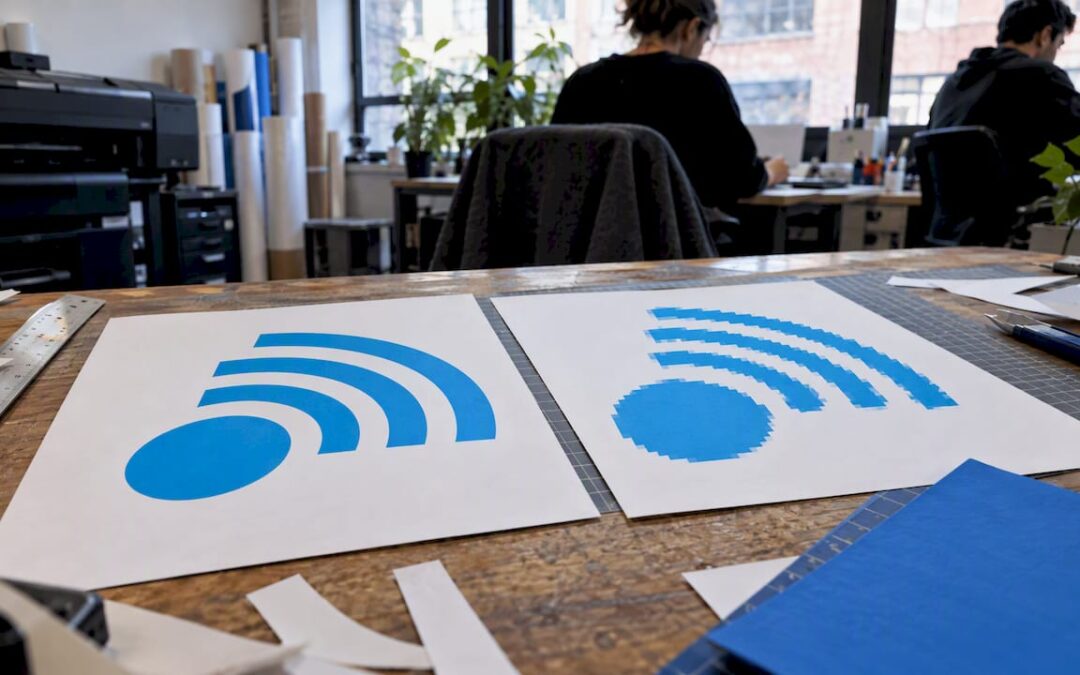
Keep a vector master (AI, EPS, PDF, or SVG) plus two raster exports, a transparent PNG for web use and a JPG for photo-heavy placements. The vector file scales to any size without losing quality and stays fully editable, the PNG handles transparent backgrounds on websites and apps, and the JPG stays small for contexts where file weight matters more than transparency.
TL;DR:
- Request an editable AI master for future changes; keep EPS only for printers that ask, and use PDF to share proofs or print files.
- Use SVG for web logos when supported; otherwise choose PNG or WebP, but retain a PNG fallback because older browsers may not display newer formats.
- For print, send a vector master plus a 300 DPI CMYK PDF or TIFF, then confirm bleed, trim, and color requirements with the printer.
- Document CMYK, Pantone, RGB, and HEX values, convert text to outlines or include font files, and secure written ownership terms for delivered assets.
Table of Contents
- Vector vs. Raster: What Each Is and Why It Matters
- Vector Formats Explained: AI, EPS, PDF, and SVG
- Raster Formats Explained: PNG, JPG, WebP, TIFF, and ICO
- Which Format Fits Web, Social, Email, and Print
- Designer Handoff Checklist and File Storage Tips
- How a Full Logo Package Should Come Together
- Logo Design and Brand Identity Done as a Full Package
- FAQ
- Sources
Vector vs. Raster: What Each Is and Why It Matters
A vector file stores your logo as mathematical paths, lines and curves defined by equations rather than individual dots. A raster file stores it as a grid of pixels, the same way a photograph is stored.
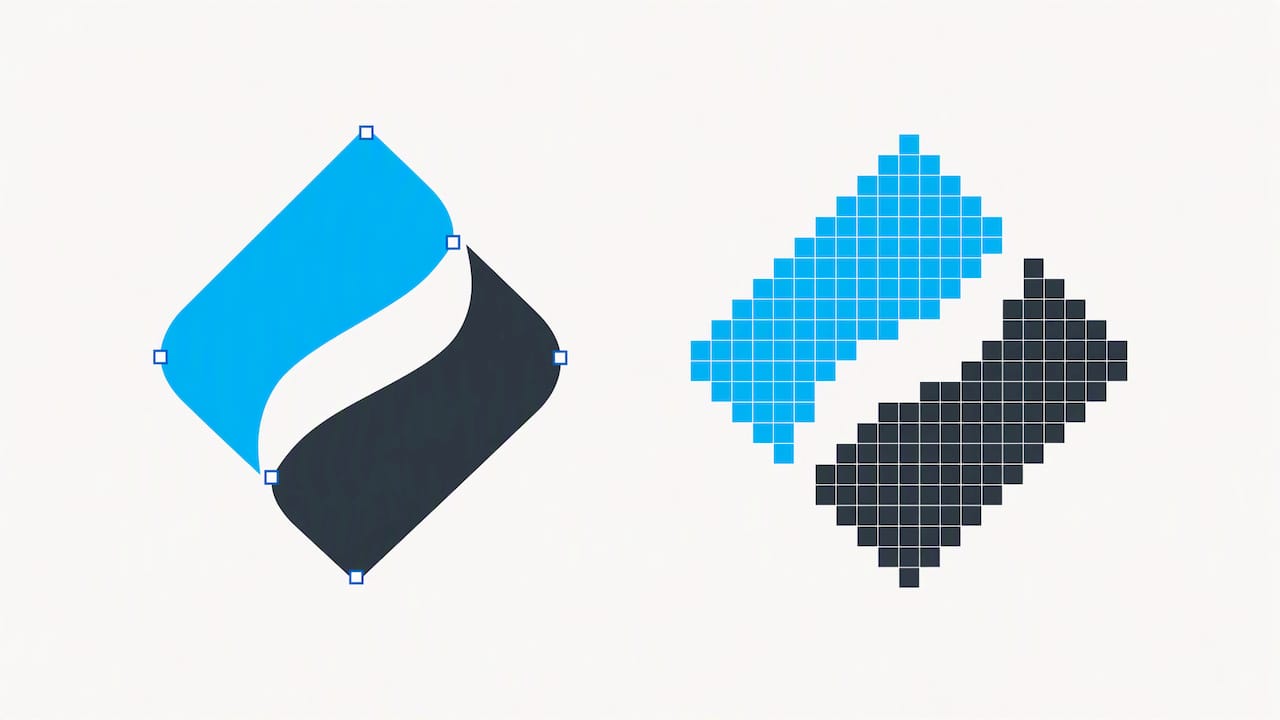
That difference decides what you can do with each file later. A vector logo resizes to a billboard or a favicon with the same crisp edges, because the math simply recalculates. A raster file has a fixed number of pixels, so stretching it past its original size makes edges blur or turn blocky, a problem Adobe’s comparison of the two formats points to directly: a low-resolution JPG or PNG cannot be reliably converted back into a clean, editable vector without a designer manually redrawing it.
Vector files are also your only true masters. PNGs and JPGs are exports, flattened snapshots meant for display, not for editing colors, fonts or shapes later.
- Vectors resize for any use, from a business card to a storefront sign.
- Raster exports are fixed size and will degrade if enlarged.
- Only a vector file lets a designer change colors, text or layout later.
Pro Tip: Keep a “Masters” folder with your vector files set to read-only, so nobody accidentally overwrites the one file your whole brand depends on.
Vector Formats Explained: AI, EPS, PDF, and SVG
Each vector format serves a slightly different purpose, and knowing which to request saves you a round trip back to your designer later.
AI is the native Adobe Illustrator format and the most complete editable master. According to Adobe’s documentation on AI files, it preserves layers and every Illustrator function, and saving it with “PDF-compatible” turned on makes it easier to open in other programs if your designer ever moves on. Ask for this file if there is any chance you will need edits down the road.
EPS is an older vector format many legacy print shops still request by name. Keep one on hand if a printer specifically asks for it, even if you rarely open it yourself.
PDF is the most universally shareable format, readable on nearly any device without special software, and it can carry full vector data when exported correctly. It works well for sending proofs or print-ready files to vendors who don’t use design software.
SVG is built for the web: an XML text file that stays small, scales cleanly on any screen, and can be indexed or styled with code, as MDN’s SVG documentation notes. It is the right choice for website logos and icons.
- AI: your editable master, request it for future flexibility.
- EPS: for legacy print vendors that specifically ask for it.
- PDF: for sharing proofs and print files across any device.
- SVG: for websites, apps and icons that need to stay sharp at any size.
SVG remains the recommended format for crisp, scalable web logos, since its small file size and clean scaling outperform raster alternatives on screens of any resolution.
Raster Formats Explained: PNG, JPG, WebP, TIFF, and ICO
Raster exports are what you’ll actually drop into most everyday tools, from email signatures to social posts, so it helps to know which one fits which job.
PNG supports transparent backgrounds and renders crisp edges, making it the standard for logos on websites, apps and documents. Export it at the specific pixel dimensions each placement needs rather than one oversized file for everything.
JPG is a compressed, photographic format with no transparency support, best reserved for contexts where file size matters more than a transparent background, such as a logo placed over a solid-color photo background.
WebP (and newer formats like AVIF) load faster on modern websites than PNG or JPG at similar quality, but older browsers may not render them, so keep a PNG fallback ready.
TIFF shows up in some high-end print workflows that need maximum image fidelity. Ask your printer directly whether they want TIFF before you export one, since not every shop requires it.
ICO and PNG sets handle favicons and app icons, and you’ll generally need a few different pixel sizes rather than one file.
- PNG: transparent backgrounds, websites, apps, documents.
- JPG: photo-adjacent placements where small file size matters most.
- WebP/AVIF: fast-loading web graphics, with a PNG fallback for compatibility.
- TIFF: specific high-fidelity print jobs, confirmed with your printer first.
- ICO/PNG sets: favicons and app icons in multiple sizes.
Which Format Fits Web, Social, Email, and Print
Matching the format to the platform avoids blurry logos, broken transparency and rejected print files. Shopify’s guide to choosing a logo file format recommends supplying vector masters alongside PNG and JPG exports and a print-ready PDF, so the same logo package works everywhere without extra requests.
- Web: Use SVG for your site logo whenever your platform supports it; fall back to PNG or an optimized WebP where it doesn’t, and confirm the correct file type is declared in any site manifest.
- Social: Export square PNG or JPG files at each platform’s recommended pixel dimensions, and use an SVG for page headers on platforms that accept it.
- Email and documents: Use a transparent PNG sized to fit your template, and embed a PDF version for anything meant to be printed from the document.
- Print: Provide your vector master plus a 300 DPI CMYK PDF or TIFF, and confirm bleed, trim and color specs with your printer before sending files.
- Favicons and apps: Supply an ICO with multiple sizes bundled in, PNG fallbacks, and an SVG. The web app manifest reference on MDN confirms manifests can list an SVG icon marked with sizes “any” alongside PNG and ICO fallbacks for browsers that need them.
Pro Tip: Save one master export settings sheet (sizes, color mode, format) so every future export matches the last one exactly.
Designer Handoff Checklist and File Storage Tips
A clear checklist when requesting files, or when a project wraps up, prevents the scramble of hunting for the right format months later.
Request these files: AI, EPS, PDF and SVG masters, a transparent PNG at several pixel sizes, a JPG, a favicon set in ICO and PNG, and either font files or text converted to outlines so the logo displays correctly without the original font installed.
Confirm color specs in writing: CMYK and Pantone values if your logo uses matched colors, plus RGB and HEX codes for digital use, along with one print-ready CMYK PDF. Documenting these in a brand style guide keeps future vendors consistent.
Get rights in writing too. A short license or assignment statement confirming you own the deliverables and how you can use them protects you later, a point guidance on logo ownership and copyright raises directly.
- Request masters, multi-size exports, a favicon set and font outlines.
- Document CMYK, Pantone, RGB and HEX values in writing.
- Get a written license or assignment statement with your invoice.
- Store masters and exports in separate, read-only folders.
Dropbox’s asset best practices guide recommends splitting storage into a “Masters” folder for vector files and a separate “Exports” folder for ready-to-use raster files, both backed up and kept read-only to avoid accidental overwrites.
| Folder | Contents | Access |
|---|---|---|
| Masters | AI, EPS, PDF, SVG | Read-only, backed up |
| Exports | PNG, JPG, ICO | Editable, versioned filenames |
How a Full Logo Package Should Come Together
A complete handoff includes editable masters, ready-to-use exports in every size you need, and plain guidance on when to use each file. That combination saves business owners from paying again later just to resize or recolor a logo that was delivered incomplete the first time. Use the checklist above whenever you request files from any designer.
— Alex
Logo Design and Brand Identity Done as a Full Package
When a logo is designed, clients receive the complete file package described above, not just a single JPG attached to an email. Our logo design and brand identity work includes editable vector masters, ready-to-use PNG and JPG exports, and print-ready PDFs, so your logo works correctly the first time it lands on a website, a sign or a printed invoice.
We also handle the broader pieces that make a logo work harder: consistent graphic design across your materials and full brand development if you’re starting from scratch. If you have an event coming up and need signage or printed collateral to match, our event design team can build from the same file package. Visit our services page to see the full list and get a project started.
- Editable AI, EPS, PDF and SVG masters delivered with every logo project.
- Ready-to-use PNG, JPG and favicon exports at the sizes you need.
- Print-ready CMYK PDFs for signage, packaging and printed materials.
FAQ
Can I edit a logo file online?
Yes, if you have the vector master (AI, EPS, PDF or SVG), free and paid online tools can open and edit it. A JPG or PNG alone cannot be reliably edited as a vector. Adobe’s AI file guide notes that without an editable master, recreating a logo from a flattened image generally means a designer redrawing it by hand.
What are the four main types of logo files?
Most logo packages cover four core formats: a vector master like AI, EPS or PDF, plus SVG for the web, PNG for transparent raster use, and JPG for photo-style placements. Contentful’s guide to image file formats confirms SVG and PNG as the standard digital pair, with JPG reserved for photos.
What are the different types of logo designs?
Logo styles generally fall into a few recognizable categories, including wordmarks (text-only), lettermarks (initials), pictorial marks (icon-based), abstract marks, mascots, combination marks and emblems. The right style depends on your industry and how recognizable you want your name versus your symbol to be.
Is a PNG file a vector file?
No, a PNG is a raster file made of pixels, not a vector file made of scalable paths. A PNG can support a transparent background, which makes it useful for web and app logos, but it will lose quality if stretched well beyond its original size, unlike a true vector such as SVG.
Sources
- A creator’s guide to image file formats and why they are important | Contentful
- icons – Web app manifest | MDN
- Assets best practices: Brand resources | Dropbox
- How To Choose the Right Logo File Format (2025) | Shopify